
How Do I Create an Assignment in Canvas: Let’s be honest. The mention of “assignments” often conjures images of tedious tasks, endless grading, and a general lack of enthusiasm from both sides of the digital divide. In the bustling virtual classrooms powered by Canvas, this challenge is amplified. For many educators, creating an assignment in Canvas might feel like a check-box exercise: set a due date, add a prompt, and hope for the best. But what if your assignments could be more than just requirements? What if they could be engaging, inspiring, and genuinely loved by your students?
The truth is, standard Canvas assignments, while functional, often fall short of sparking true intellectual curiosity or fostering deep learning. Students might complete them, but do they engage with them? Do they feel a sense of purpose beyond simply earning a grade? This disconnect leads to uninspired work, missed learning opportunities, and a general feeling of educational drudgery.
This guide is designed to empower you, the educator, to transcend the rudimentary and master the art of assignment design within Canvas. We’ll explore not just how to create an assignment in Canvas, but how to craft experiences that students eagerly embrace, transforming mundane tasks into meaningful milestones. Forget merely assigning work; let’s become architects of active, unforgettable learning.
The Core Challenge: Why Standard Canvas Assignments Often Fall Short
Before we dive into solutions, let’s dissect the common pitfalls that render many digital assignments forgettable. Understanding these foundational issues is the first step toward creating assignments students genuinely value.
The “Set It and Forget It” Trap
It’s easy to drop a generic prompt into Canvas, set a due date, and consider the job done. This “set it and forget it” mentality, however, strips assignments of context and relevance. Students are left wondering, “Why are we doing this?” They see it as another hoop to jump through, rather than a valuable step in their learning journey. Without a clear connection to broader course goals or real-world applications, even the most well-intentioned tasks can feel arbitrary.
Over-reliance on Text-Based Submissions
While essays and reports are cornerstones of academic development, an exclusive focus on text entry or file uploads can stifle creativity and limit the ways students demonstrate understanding. Not every learning outcome is best assessed through a written paper. This narrow approach overlooks diverse learning styles and the rich multimedia capabilities that modern learning management systems like Canvas offer.
Missing the “Why”: The Purpose Gap
When students don’t grasp the underlying purpose of an assignment – its “why” – they often default to surface-level engagement. They might parrot back information rather than synthesizing it, or complete tasks with minimal effort. The absence of a clear rationale for the assignment’s existence, its connection to their future, or its contribution to their intellectual growth, creates a “purpose gap” that disengages even the most motivated learners.
Shifting Your Mindset: From Task-Giver to Learning Architect
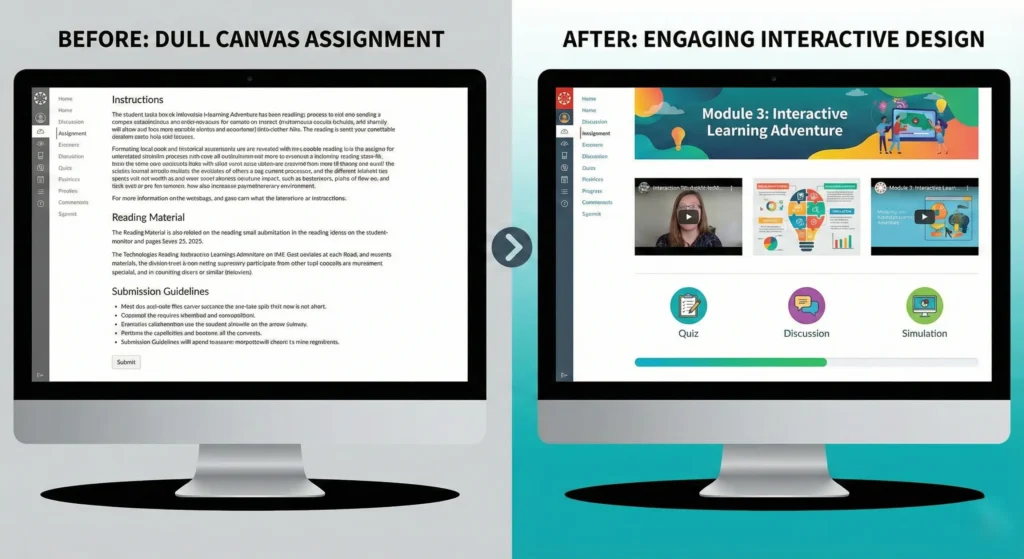
To truly revolutionize your Canvas assignments, a fundamental shift in perspective is required. Instead of merely distributing tasks, envision yourself as a learning architect, meticulously designing experiences that inspire, challenge, and connect.
- Embrace Active Learning Principles: Move beyond passive reception of information. Design assignments that require students to do, create, analyze, and collaborate. Think critically about what active engagement looks like for your specific learning objectives.
- Prioritize Student Agency and Choice: Empowering students with choices, even small ones, significantly boosts engagement. Can they choose their topic? Their submission format? Their collaborators? Offering agency transforms “do my assignment” from a chore into an opportunity for self-direction.
- Connect Assignments to Real-World Applications: Help students see the immediate and future relevance of their work. How does this skill apply outside the classroom? What real-world problem does this assignment prepare them to solve? Bridging this gap imbues the work with intrinsic value.
Mastering the Canvas Assignment Builder: Beyond the Buttons
Understanding the nuances of the Canvas assignment builder is crucial for implementing innovative assignment designs. It’s more than just a place to enter a prompt; it’s a powerful toolkit.
Getting Started: The Anatomy of a Stellar Canvas Assignment
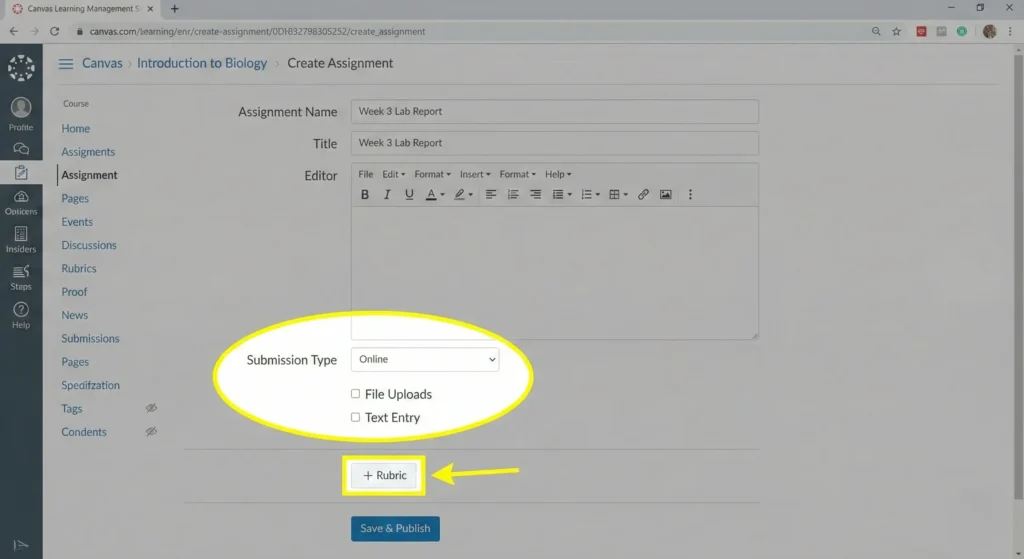
When you decide how to create an assignment in Canvas, the process begins with navigating to “Assignments” in your course menu and clicking “+Assignment”. Here are the foundational elements you’ll configure:
- Assignment Name: Make it clear and descriptive.
- Rich Content Editor (RCE): This is where your instructions live. Use headings (Canvas automatically makes the page title a Heading 1; use Heading 2 for major sections and Heading 3 for sub-sections within your instructions), bullet points, bold text, and embedded media (images, videos, links) to make instructions scannable and engaging.
- Points: Clearly define the point value.
- Assignment Group: Organize assignments into groups for better gradebook management and weighted grading.
- Display Grade As: Choose from points, percentage, complete/incomplete, or letter grade.
- Submission Type: This is where the magic begins.
Leveraging Diverse Submission Types for Engagement
Canvas offers a robust set of submission types, each unlocking different pedagogical possibilities. Don’t limit yourself to just “File Upload”!
- No Submission: Perfect for in-class presentations, participation grades, or activities completed outside Canvas that still need a gradebook column.
- Online: This is your most versatile option.
- Text Entry: For quick reflections, short answers, or embedding content from external tools like Padlet or Microsoft Paint.
- Website URL: Ideal for students submitting links to blogs, portfolios, digital projects hosted elsewhere, or YouTube videos.
- Media Recordings: Allows students to record audio or video directly within Canvas. Fantastic for oral presentations, language practice, or explaining complex concepts.
- File Uploads: The traditional option for essays, presentations, or project files. You can restrict file types (e.g., only PDFs or specific image formats). Note that if your institution has enabled Google Docs, students can submit these files, which will be converted to their Microsoft counterparts.
- Student Annotation: Students can annotate a document you provide directly within Canvas. This is an excellent feature for close reading, collaborative editing, or demonstrating analytical skills.
- On Paper: For physical submissions that need a gradebook entry.
- External Tool (LTI): Integrates third-party applications seamlessly into Canvas, allowing students to complete assignments directly within the tool and often syncing grades back automatically. Examples include Turnitin for plagiarism checks, Perusall for social annotation, or publisher-specific platforms.
Crafting Crystal-Clear Instructions: The Foundation of Success
Ambiguous instructions are the bane of student learning and a source of constant “assignment help” requests. Your assignment instructions should be a beacon, not a riddle.
- Structure for Readability: Use Canvas’s Rich Content Editor to its full potential. Employ headings (H2, H3), bullet points, and numbered lists. Break down complex tasks into smaller, manageable steps.
- Provide Examples: When possible, include examples of successful submissions or demonstrate the expected output. A picture, or even a short video, can be worth a thousand words.
- Integrate Rubrics Early: Rubrics clarify expectations and demystify grading. Attach rubrics directly to your Canvas assignments and encourage students to use them as a guide throughout the assignment process. Canvas also supports student rubric self-assessment, allowing them to evaluate their own work against the rubric before submission.
- Define “Success”: Beyond just steps, articulate what a high-quality submission looks like. What are the key criteria? What skills are being assessed?
Differentiated Assignments and Group Work
Not all students learn at the same pace or in the same way. Canvas allows for flexibility in assignment delivery.
- Assigning to Specific Students/Sections: You can assign an assignment to individual students, specific sections, or groups. This is invaluable for differentiation or providing extensions.
- Setting Up Group Assignments: Group projects foster collaboration and develop crucial teamwork skills. To set up a group assignment, first create a Group Set and individual Groups in the “People” section of your course. Then, when creating the assignment, check the “This is a Group Assignment” box and select the appropriate Group Set. You can choose to assign the same grade to all group members or grade them individually. Remember to set up groups before students submit work, as editing options become limited afterward.
Infusing Creativity: Assignment Types Students Will Adore
Now for the exciting part: moving beyond the mundane to assignments that captivate. Here’s how to create an assignment in Canvas that students will genuinely look forward to tackling.
| Assignment Type | Description | Canvas Features Used | Why Students Love It |
|---|---|---|---|
| Project-Based Learning | Open-ended tasks solving real-world problems, often culminating in a product or presentation. | File Upload, External Tool (e.g., for presentations), Rubrics, Group Assignments | Autonomy, Relevance, Collaboration: Students apply knowledge in a meaningful context, take ownership of their learning, and develop teamwork skills. It answers the “why” directly. |
| Interactive Media Creation | Students create podcasts, video essays, digital stories, or interactive presentations to demonstrate understanding. | Media Recordings, File Upload (for external media files), Website URL (for hosted content) | Expressive, Develops Digital Literacy: Appeals to visual and auditory learners. Allows for creative expression and builds valuable digital content creation skills. It’s often more fun than writing a traditional essay. |
| Peer Review & Feedback | Students critique and provide feedback on each other’s work, often iteratively. | Peer Reviews, Rubrics, Discussions (for structured feedback) | Active Learning, Critical Thinking, Empathy: Students learn by evaluating others’ work, deepen their understanding of criteria, and practice giving constructive feedback. It also provides a unique perspective on their own work. Canvas’s peer review tool can be set for automatic or manual assignment and even anonymous reviews. |
| Debates & Discussions | Structured online discussions or debates where students present arguments and engage with opposing viewpoints. | Graded Discussions, Text Entry (with rich content), Media Recordings (for video/audio arguments) | Intellectual Stimulation, Communication Skills: Encourages critical thinking, research, and persuasive communication. It fosters a sense of community and provides a platform for diverse perspectives. |
| “Choose Your Own Adventure” | Offers students multiple pathways or options to achieve learning outcomes, catering to varied interests and strengths. | Modules (conditional release based on choice), Quizzes, File Upload, Text Entry | Agency, Personalized Learning: Empowers students to take control of their learning journey, choosing methods that best suit their style and interests, making the “do my assignment” feel less like a directive. |
| Annotation Assignments | Students directly annotate a document provided by the instructor within Canvas, adding comments, highlights, and questions. | Online Submission Type: Student Annotation | Deep Engagement with Content, Analytical Skills: Encourages close reading and active processing of information, allowing instructors to see students’ thought processes directly on the text. |
Gamification Elements
Injecting game-like elements can significantly boost engagement. While Canvas doesn’t have native “badges” for every assignment, you can creatively use its features:
- Scenarios/Case Studies: Present students with real-world problems to solve, encouraging critical thinking and application of course content.
- “Escape Room” Assignments: Use Canvas modules with conditional release to create a sequence of challenges that students must complete to “unlock” the next stage.
- Leaderboards (with caution): If appropriate for your course context, a visible leaderboard (perhaps for non-graded challenge activities) can motivate. Always consider the potential for negative competition and ensure a positive, supportive learning environment.
Integrating External Tools (LTI Integrations)
The power of Canvas extends far beyond its built-in features through Learning Tools Interoperability (LTI) integrations. These tools can transform “assignment help” and “do my assignment” into dynamic learning experiences. LTI apps connect seamlessly, often eliminating the need for separate logins and automatically syncing grades.
Think about tools like:
- Hypothes.is or Perusall: For collaborative annotation of readings.
- Padlet: For interactive brainstorming, digital bulletin boards, or photo scavenger hunts.
- Flip (formerly Flipgrid): For video discussions and short presentations.
- Publisher-specific platforms: Many textbook publishers offer LTI integrations for their online homework and quiz platforms.
To add an external tool as an assignment, you select “External Tool” as the submission type and then click “Find” to select the LTI app enabled for your course.
The Feedback Loop: Making Grading a Learning Opportunity
Even the most creative assignment can fall flat without timely, constructive feedback. Canvas’s SpeedGrader is a powerful tool to streamline this process and ensure feedback is a catalyst for learning, not just a grade delivery mechanism.
- Accessing SpeedGrader: You can access SpeedGrader directly from an assignment, a graded discussion, a quiz, or even the Gradebook.
- Using Rubrics Effectively: If you’ve attached a rubric, SpeedGrader allows you to click directly on rubric criteria to apply scores and feedback, significantly speeding up the grading process while ensuring consistency.
- Annotating Submissions: For file uploads (like PDFs or Word documents), SpeedGrader’s built-in DocViewer allows you to annotate directly on the student’s submission. Use highlights, text comments, strikeout text, and freehand drawing tools to provide targeted feedback.
- Diverse Feedback Options: Go beyond text comments. SpeedGrader allows you to record audio or video feedback, offering a more personal touch and often conveying nuance more effectively than written words. This can be particularly impactful for explaining complex concepts or providing encouraging remarks.
- Managing Multiple Submissions: By default, Canvas allows unlimited submissions until the “Available Until” date. If students submit multiple times, SpeedGrader displays the most recent submission first, but allows you to view all previous attempts via a dropdown menu. You can also limit the number of submission attempts in the assignment settings.
- Anonymous Grading: For bias-free assessment, SpeedGrader offers an anonymous grading option, hiding student names during the grading process.
- Grade Posting Policy: Consider setting your gradebook’s posting policy to “Manual” so grades and feedback remain hidden until you are ready to release them to all students simultaneously. This prevents a trickle-feed of grades that can cause anxiety.
Conclusion
Creating assignments in Canvas that students actually love isn’t about finding a magic button; it’s about thoughtful design, leveraging Canvas’s versatile features, and shifting your pedagogical mindset. By moving beyond the “set it and forget it” mentality and embracing strategies that foster agency, relevance, and creativity, you transform assignments from obligatory tasks into pivotal learning experiences.
Remember to craft clear instructions, utilize diverse submission types, empower students through group work and peer review, and provide meaningful feedback via SpeedGrader. When you integrate external tools and inject gamification, you enhance engagement and create a dynamic learning environment. The ultimate goal is to inspire intrinsic motivation, making “how do I create an assignment in Canvas” a question not of logistics, but of limitless educational possibility. By dedicating yourself to this craft, you’re not just assigning work; you’re cultivating a passion for learning that extends far “beyond the basics.”
Frequently Asked Questions
Q1: How do I create an assignment in Canvas that prevents cheating?
A1: While no system can entirely eliminate cheating, you can implement several strategies. Utilize Canvas’s built-in Quizzes for timed assessments with shuffled questions and question banks. For written assignments, integrate Turnitin as an External Tool for plagiarism detection. Design assignments that require higher-order thinking, application, and synthesis, making rote copying difficult. Consider media recordings where students explain their process or peer reviews where students are accountable to each other. Anonymous grading in SpeedGrader can also reduce bias.
Q2: Can I reuse an assignment I’ve already created in another Canvas course?
A2: Yes, absolutely! Canvas allows you to copy individual assignments or entire course content from one course to another using the Course Import Tool. Navigate to your new course, go to “Settings,” and select “Import Course Content.” You can choose to import specific content (like a single assignment) or the entire course. This saves significant time when teaching the same course across different semesters or sections.
Q3: What’s the best way to give students feedback on an assignment in Canvas?
A3: The SpeedGrader tool is your best friend for efficient and effective feedback. Beyond text comments, leverage its features to:
- Annotate directly on submitted documents (PDFs, Word files) using highlights, text comments, and drawings.
- Record audio or video feedback for a more personal touch and to convey complex explanations easily.
- Utilize rubrics to provide consistent and transparent grading, directly clicking on criteria to assign points and comments.
Remember to “mute” the assignment in SpeedGrader until all grading is complete to release grades and feedback simultaneously.
Q4: How can I make group assignments in Canvas more effective?
A4: Effective group assignments start with clear setup and structure.
- Create Group Sets and Groups in the “People” section before creating the assignment.
- Clearly define roles and expectations within groups.
- Utilize Canvas Group Discussions or Collaborations (for shared documents) to facilitate communication and shared work within groups.
- Consider incorporating peer evaluation components (though Canvas’s peer review tool is for individual submissions, you can design a separate “No Submission” assignment for peer ratings).
- Structure the assignment with milestones and check-ins to monitor group progress and provide timely “assignment help.”
- Decide whether all group members receive the same grade or if individual grades are allowed when setting up the group assignment.
Q5: What are some creative assignment ideas for an online course using Canvas?
A5: Break free from traditional essays! Consider:
- Podcast Series: Students create short audio episodes on course topics (using Media Recordings or external tools).
- Digital Storytelling: Students produce short videos or interactive presentations.
- Virtual Debates: Structured discussions using graded discussions or media recordings.
- Infographics/Visual Summaries: Students use design tools to present complex information visually.
- Annotated Bibliographies/Webliographies: Students curate and annotate resources using text entry or website URLs.
- Simulation or Case Study Analysis: Students apply course concepts to real-world scenarios, submitting their analysis as file uploads or text entries.
- Student-Led Tutorials: Students create instructional videos or guides for their peers.
Q6: How do I ensure accessibility for all students when creating assignments in Canvas?
A6: Accessibility is paramount.
- Use Canvas’s Rich Content Editor (RCE) for all instructions, as it generates accessible HTML. Avoid copying directly from Word, which can introduce problematic formatting.
- Utilize proper headings, bullet points, and numbered lists in the RCE for clear structure and readability by screen readers.
- Provide alternative text (alt text) for all images to describe their content for visually impaired students.
- Ensure color contrast is sufficient for text and backgrounds; Canvas’s Accessibility Checker can help identify issues.
- If embedding videos, ensure they have captions or transcripts.
- Use the Accessibility Checker icon (a small person in a circle) located at the bottom right of the Rich Content Editor to scan your content for common accessibility issues.
Q7: Can students resubmit assignments in Canvas, and how do I manage that?
A7: Yes, Canvas supports multiple submissions. By default, students can typically resubmit assignments until the “Available Until” date. As an instructor, you can manage this by:
- Limiting attempts: In the assignment settings, you can specify a fixed number of attempts (e.g., 1, 2, or 3) instead of unlimited.
- Setting clear due dates and “until” dates: The “until” date dictates when students can no longer submit.
- Reviewing submissions in SpeedGrader: All submissions are visible in SpeedGrader via a dropdown menu, showing the date of each attempt. You can choose which submission to grade.
- Communicating your policy: Clearly inform students about your resubmission policy, including any impact on grades or deadlines.